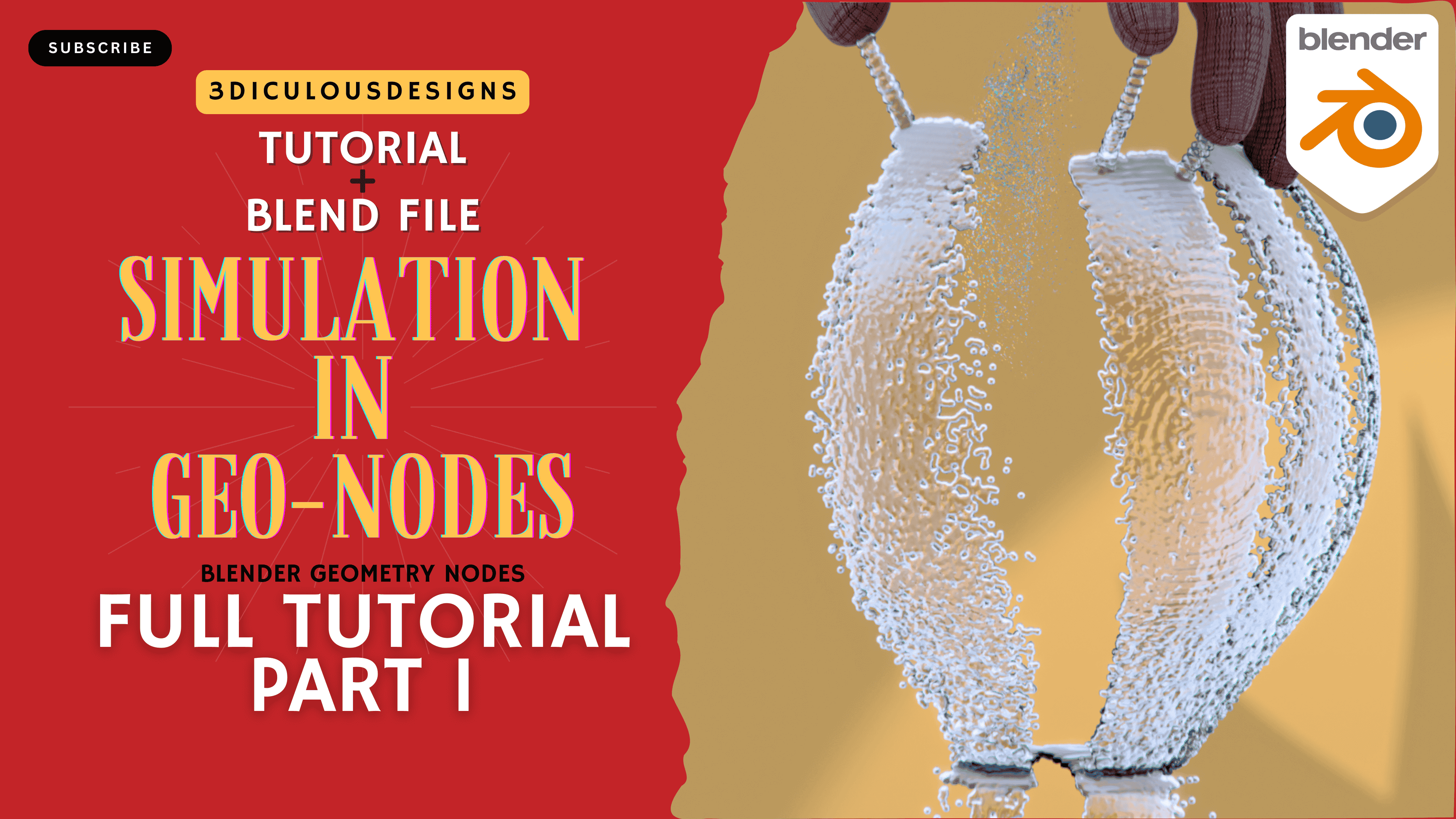
Blender’s Geometry Nodes offer powerful tools for creating dynamic simulations, from particle systems to complex interactions. In this blog, we’ll break down a two-part tutorial series that teaches you how to build simulations using Geometry Nodes. Whether you’re a beginner or looking to expand your skills, this guide will walk you through the essentials.
Part 1: Basic Simulation Setup
Key Concepts Covered
1. Simulation Zones
- Start by creating a simulation zone to track changes over time.
- Use Distribute Points on Faces to generate points on animated finger meshes. Adjust density to ensure consistent coverage.
2. Attributes and Initial Velocity
- Store attributes like
initial_velocityto control particle direction. - Calculate velocity using normals (direction of fingers) and add randomness with Random Value nodes.
3. Forces
- Control Point Attraction: Use an Empty object as an attractor. Calculate distance between particles and the Empty to create a pull force.
- Gravity: Add a downward force using a constant vector (e.g.,
(0, 0, -9.8)scaled by Delta Time for realism).
4. Collisions
- Sample the nearest surface position and normal of collision objects (e.g., a sphere).
- Reflect particle velocities using Dot Product to simulate bounce effects.
5. Attribute Updates
- Continuously update velocity by reducing it over time (e.g., multiply by
0.99per frame for drag).
Part 2: Advanced Effects and Scene Building
Key Concepts Covered
1. Particle Lifetime
- Create an
ageattribute to track how long particles exist. - Delete particles after a randomized lifetime (e.g., between 30–250 frames) for organic behavior.
2. Turbulence and Randomization
- Add Random Value nodes to velocity for chaotic motion.
- Use Noise Texture or Vector Math to create swirling effects.
3. Disintegration Effects
- Convert character meshes to particles using Dual Mesh and Split Edges.
- Apply outward forces along normals and use Simulation Zones to animate disintegration.
4. Shading Based on Age
- Map the
ageattribute to a Color Ramp for dynamic color transitions (e.g., red to blue as particles age). - Use Emission Shaders for glowing effects.
5. Scene Composition
- Add colliders (e.g., UV spheres) and animate them to interact with particles.
- Use Array Modifiers and Subdivision Surface to create complex structures.
Pro Tips for Success
- Experiment with Values: Adjust force strengths, randomness, and lifetimes to achieve desired effects.
- Optimize Performance: Reduce particle counts during testing; increase them for final renders.
- Layer Forces: Combine multiple forces (attraction, gravity, turbulence) for realistic motion.
Practical Applications
- Create liquid-like flows, smoke, or magical effects.
- Simulate debris for explosions or environmental interactions.
- Animate abstract art using dynamic particle systems.
Conclusion
Blender’s Geometry Nodes open endless possibilities for simulations. By mastering attributes, forces, and collisions, you can bring static models to life. Follow the video tutorials for hands-on guidance, and don’t hesitate to experiment!
Share your creations on social media and tag the instructor—subscribe to tactiq.io for more Blender tutorials!
Happy simulating! 🎨✨